This is an old revision of the document!
Managing Agreements
Specifically for A-1 CLUB agreements unless specified otherwise.
Creating an Agreement
- Open the SM Agreements form.
- Click the Info tab.
- Type “N” into Agreement: at the top (above the tabs).
- Tap TAB.
Agreement (Info Tab)
Following are the important fields and their descriptions. If there is a greyed out box to the RIGHT of the field you are in, please use F4 to grab a proper value for the field.
- Description - “A-1 Club MONTHLY” “A-1 Club 1YR” or “A-1 Club 5YR”, depending on the client's membership.
- Agreement Type - Use F4 to select “A1CLUB”.
- Customer - Use F4 to select the customer who signed up.
- Customer PO - You can leave this blank unless the customer supplied a PO.
- Effective Date - Enter the date when this agreement came (or will come) into effect.
- Expiration Date
- For a Reoccurring (Non-Expiring) (Monthly, Yearly…etc) agreement leave this blank.
- For a Entirely Prepaid agreement enter the date the agreement will expire. (usually a multiple of the year it starts, minus one day)
- Example: A prepaid yearly agreement might start on May 5th 2015 and expire on May 4th 2016.
- Rate Template - Use F4 to select “A1CLUB”.
- Agreement Price
- For a Reoccurring (Monthly, Yearly…etc) agreement enter the price per period (month or year..etc)
- For a Entirely Prepaid agreement, enter their total price.
- Revenue Recognition - Leave as “B - Billed”.
- Invoice Format - Leave blank (this is for the actual Agreement invoice, not Work Order invoices).
- Sales Tech - Tap F4 to select the tech who sold this agreement.
- Non-Expiring - Check if the agreement is Reoccuring (Monthly, Yearly…etc).
- Auto-Pay Settings for Non-Expiring section - Only fill this out if the agreement is reoccurring (aka, non-expiring, auto-billing)
- Frequency :: xx - Select Every (days/months/years), then put in HOW MANY in the box to the right.
- For example: Every XXXXX Days :: 28 would create a charge every 28 days.
- Tax Type - Select the tax type (typically 1-Sales).
- Tax Pct - Enter 100% (if not already defaulted)
- Tax Code - Use F4 to select the right tax code for this agreement.
- Start Date - Select/Enter the first invoice date (for MONTHLY this is typically the first day of the next month).
- End - Leave Blank unless you want the reoccurring charges to stop at a certain date, but the agreement to remain active.
- Preview - Tap F4 if you'd like to see the dates and amounts for the next 10 bills.
- Pay Profile - Tap Pick Card to open the Payment Profile Picker window.
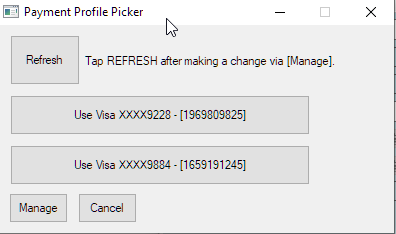
- Refresh - This refreshes the data for this customer from Authorize.net
- Use xxxxxxxx - This sets the agreement to use this payment method.
- Manage - This is where you ADD a card into Authorize.net for this customer. If it prompts you to login, then return here and tap the Manage button again.
- Cancel - Closes this Payment Profile Picker window.

Tap Save Icon ( or Records → Save ).
Work Schedule (Tab)
This area is used to connect a service site and work schedule to this agreement. 
- Tap the Work Schedule tab.

- Double Click the * symbol to the left of the top row.
- A new form will open called “SM Service”.
SM Service -> Info
- Service Seq - Type “N” and tap TAB.

- Description - Type the customer name, or some other description relating to this service site, customer, and agreement. It's a little redundant.
- Service Site - Tap F4 to select the correct service site for this agreement.
- The rest of the fields: Leave the defaults as is unless you know they need to be changed.
- Save the record (CTRL-S or Records → Save or tap save icon)
SM Service -> Schedule
- Tap the Schedule tab.

- Contact Before Scheduling - Tap to TURN ON.
- Auto Schedule Trip - Leave OFF as it does not actually do this (as of 2019-02-21). Use F1 in this field to see if the current version does.
- Due - Select “3 - Due Within” from the dropdown.

- Days - Type 90.
- Recurring Pattern - Click the Yearly option.

- Recurs every [ ] year(s) - Type 1.

- On - Select one month prior to the sign up month.
- [day of month] - Enter the 1st day of the month. (Example of May 5th in image)

- Save the record (CTRL-S or Records → Save or tap save icon)
- Close the SM Service form. Great job!
Billing Schedule (Tab)
 This area shows scheduled bills for the agreement.
You only need to be in this tab if you are working with a ONE-TIME agreement (Skip if using Non-Expiring)
- Tap Billing Schedule tab to switch tabs.
One Line for the Invoice
Create just one line for the invoice for this typical expiring agreement.
- Date - Enter the invoice date.
- Billing Amount - Enter the agreement price.
- Tax Type - Select1 - Sales from the dropdown.
- Tax Code - Tap F4 to select the correct tax code for the agreement bills. If the site is in Oregon, then use OREGON as the tax code.
- Tax Basis - This should default in. But if it does not, enter the agreement price.
- Tax Amount - this should default in.
- Tap the Save icon.
That's it for this tab, great job!
Activating
So, you've entered Info, Work Schedule and Billing Schedule? Great job! Now it's time to ACTIVATE the agreement.
- Tap the Activate button at the bottom left of the window.
- Review the fields to make sure all is in order, and pay attention to anything under Notifications.
- TapActivate to mark the agreement as active.
You rock!
Scheduling Inspections
- Open the SM Generate PM Work Orders form.
- (optional) Adjust Filters as needed.
- TapSearch to perform search.
- Click inside the Create column within each row of a Work Order you'd like to create.
- You may optionally use the Check All button, or the Skip column as required.
- ClickProcess (at the bottom right) to proceed.
- Review the popup and tapYes or No (your choice).
SM Generate Work Order Summary window will pop up for review. Feel free to review and close it.
Each WORK ORDER generated for the agreements will SHOW UP on in SM Dispatch Board on the first date of it's Due Within range, within the top “Unscheduled” row, at 8am. You will need to ADJUST these VISITS to the availability of the techs, remembering that each work order has a “Due within” window of three months.
To view the “Due Within” window for each Work Order:
- Right click on the item within SM Dispatch Board
- SelectWork Order
- Look near the bottom of the window for the “Due:” line
—-
Billing
Agreement billing happens in three steps:
- Agreement Billing Schedule is generated
- Invoice is generated to match the billing schedule
- Invoice is sent to client
- (optional) Payment is received.
Agreement Type: Non-Expiring Auto-Pay
- Billing Schedule Tab - This tab is initially empty, then fills out as needed when invoiced.
- Invoices Tab - This tab is also initially empty, and fills out when invoices are generated.
This setup uses an automatic billing process which runs at 6am every day, then emails the results to the ap email address.
Auto Bill & Charge Process
- Runs a SQL Server job SM Agreement Auto Bill and Charge Co XX job at 6am every day.
- For each agreement that is active and should be charged this day:
- Runs a stored procedure to create a line in Billing Schedule.
- Runs a stored procedure to create an invoice.
- Runs a stored procedure to charge the invoice to the Pay Profile on the agreement.
- Records results in a table budARAutoBillResults.
- When the payment provider processes the charge, it sends a notice to us, and we record the payment as an AR Cash Receipt automatically for that invoice. This should happen within 30 seconds of the charge.
Emailed Report
- Sent to ap company email address each day when charges occur.
- Includes link to report SM Agreement Auto Bill Results:
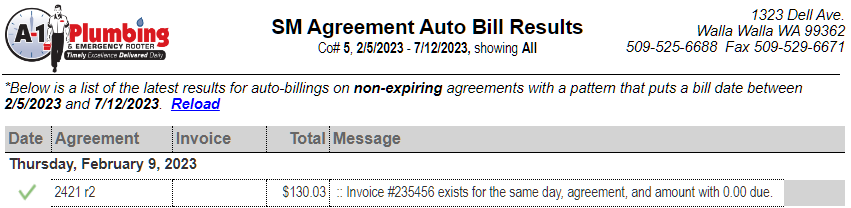
- Lists all agreements that should have been billed on that day, grouped by day.
- Each day group: if missing any invoices have buttons for:
- Reprocess Date - This tries to re-create invoices and then charge them for this date.
- Create Invoices Only - This tries to re-create invoices, but not charge them, for this date.
- Each Agreement line shows:
- Green Checkmark if invoice exists, and is charged.
- Red X if invoice is missing or charge did not happen.
- Agreement Number and Revision
- Invoice Number
- Total $$
- Message
- And a Invoice or Charge button at the end of the line, if the line needs that as the next step.
- After tapping on the button of your choice, the agreement will reload along with a message near where you tapped that informs you of results.
- Please utilize the Reload link a the top of the report if you want to refresh things.

Example: One day and agreement where all is well.

Example: One day and agreement that is missing an invoice.

Agreement Type: Regular One-Time Billings
- Billing Schedule Tab - This tab must contain one line showing the total amount, before the agreement is activated.
- Invoices Tab - This tab is initially empty, and fills out when the invoice is generated by tapping the Billings Due button. (or when SM Agreement Billings is ran)
This setup is used for one-time (full payment) agreements that do NOT automatically renew.
If you want it to renew automatically and charge the client, create an Amendment and check the Non-Expiring checkbox, as well as fill out the “Auto-Pay” section.
Agreement Type: Oddballs (Multiple Billings per Expiring Agreement)
Agreement billing is accomplished by running SM Agreement Billings form which creates the invoices. Refer to the section below on how to do this.
Generating Invoices
Open the SM Agreement Billings form. This form uses the “Billing Schedule” on activated agreements to determine which agreements to bill.
- Use the fields as filters if you need to, or just leave them blank to see ALL agreements that need billed.
- TapSearch button to search.
- Select the Create checkbox next to each agreement for which you'd like to create an invoice. Or use the Check All button to automatically select all the lines.
- Once you are satisfied with your selection, tapLaunch Invoice Review to proceed.
Invoice Review
Review the invoices as needed, then File → Process to process the batch and create the invoices.
Receiving Payments
This is done the same way as normally receiving payments for invoices. We can link them here once the instructions are created.
Renewal
- Yes, I know which Agreement needs renewal.
- Open the SM Agreements form, and select the agreement.
- No, I am looking for a list of agreements that need renewal.
- Open the SM Agreement Renewal form and use the fields as filters.
- TapRefresh to refresh the GRID.
- Double Click any line to open that specific agreement.
SM Agreements
Tap Renew near the bottom of the screen.
This creates a new REVISION for the existing agreement as a quote, for the same LENGTH as the original agreement. Note the updated dates!
You may want to copy over the Sales Tech from the prior revision, so it does not complain about this requried field each time you save the record.
Review the Work Schedule and Billing Schedule. They should have copied over from the prior revision.
When you are done reviewing, activate this agreement
Changing Address/Site
If there is an invoice with a WO on the OLD site, be aware that changing the agreement using this method keeps the same dates, so the OLD site will no longer be covered by this agreement within the same date range. This messes up the $$ tab. If you run into this, notify Nathan with the Agreement number and site numbers, and any other details that might help.
- Open Agreement.
- Click Amend.
Removing "Spot Coverage"
- Click Spot Coverage tab.
- Click on line with address.
- Click the Red X button.
Modifying Address in "Work Schedule"
- Click Work Schedule tab.
- Double Click on little arrow to left of first line.
- Click in Service Site.
- Tap F4.
- Select new service site.
- Close the SM Service form.
Reactivating Agreement
Follow activate this agreement.
Add "Spot Coverage" for New Site
- Click Spot Coverage tab.
- Click in the Service Site field in the new line.
- Tap F4 and select the new service site.
And now, Save the agreement! 
Termination
If for some reason the agreement must be terminated before it expires, use the Terminate button at the bottom of the agreement.
Work Orders for Club Members
Scheduling Work Orders
If you are using the SM Call Handler, you should notice an “Under Contract” red text at the top of the window once the customer and site are selected.
Once the Work Order is generated, you need to check two things:
- Open WorkOrder
- Move your eyes to the lower detail area.
- Agreement should show the agreement number.
- Rate Template should be A1CLUBFLAT, unless this is a non-flat-rate job. In which case, you should select the other A1CLUBT&M rate.
You will also notice that the agreement number show up on each Work Completed line.
Applying Club Balance To An Invoice
- Generate the invoice as your normally would, but this time, Make sure that each of your line items under the “Work Completed” tab that are going to show up on the invoice, have the appropriate agreement selected in the “Agreement” column.
- Once your work completed items are ready to go, click the “Bill WO” button at the bottom of the screen.
- Preview the invoice to make sure that everything looks correct, then “Process & Post the invoice, but don't send it out just yet. (Leave the “Invoice Review” form open. You will come back to it after making the A-1 Club Balance Credit Memo.)
- OpenAR Invoice Entry. By clicking on the button to the right of the “Description of Work” AR Invoice Entry
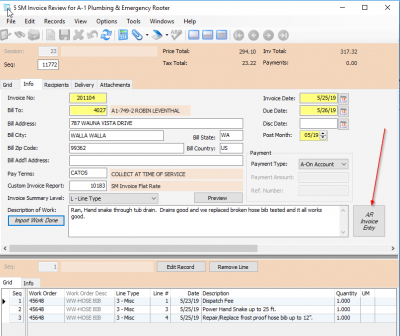
- Create a new batch.

AR Invoice Entry
- Action - Leave as “A-Add”.
- Customer - Tap F4 to select the customer.
- Trans Type - Click to select “C-Credit Memo”.
- A popup shows up: Select the invoice you just created.
- Save the record. (CTRL-S or Records → Save or click save icon)
- TapApply Agreement Balance As Mmo.
The bottom section should now update. If the bottom section DOES NOT UPDATE, then it means that my automatic method could not detect any existing Club balance for this customer. This might be the case if it was not posted yet.
If you need to manually enter the bottom section, use the following guidelines:
- Type - “Other”
- Description - Should copy down automatically from the top Description.
- GL Account - Find the GL “2622 DEFERRED FULL SRVC AGREEMENTS” account.
- Amount and Tax Basis - These are POSITIVE numbers that reflect the amount of money you using from the customer club account to pay the invoice.
- Tax Code and Tax - May or may not be editable, should reflect the amount of tax applied to this credit memo.
- Total Amount - Display only, calculated from “Amount + Tax”.
- Save this credit memo.
- Post this credit memo.
Back in the Invoice Review Window
- Under the Custom Invoice Report - Set this to be 10185 (or Use F4 & select “SM Invoice A1Club”)
- (Optional) Preview to see the changes (note the A-1 Club Credit lines in the subtotal area).
- Proceed with sending / distributing the invoice.
That's it!