This is an old revision of the document!
Managing Backflows
General Notes
This program is comprised of one main database file which can be found at either Z:\Aichele\Backflow Information or wherever the root storage is on your computer.
Opening the Database
- Navigate to the root folder by double clicking on the ‘Backflow Testing’ folder on your desktop.

- Double Click on the file named ‘Backflows’.
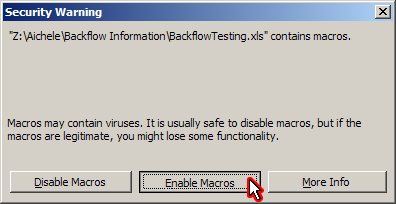
- If a window about Macro Security appears, select the Enable Macros button.
Database is now open!
Customer Management
Adding a Customer/Visit Record
- Open the database as specified above if it is not already open.
- In the 'Database' pane on the left, click on the ‘Forms’ button.
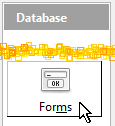
- Double Click on 'Edit Visits' form name to open it.
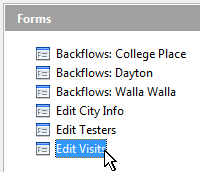 It may open with an existing customer/visit selected.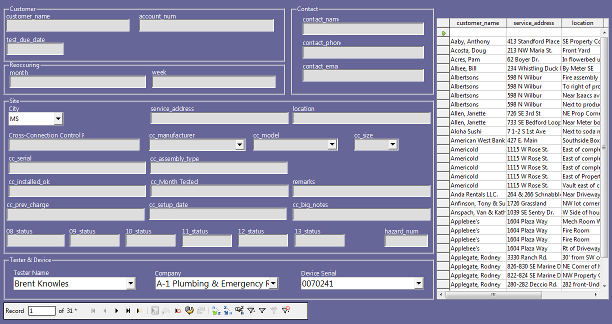
- Click on the 'New Record' button along the bottom of the form.

- Click in the new ‘customer_name’ field, and type the customer’s billing name.
- After entering the customer’s name, click the TAB key on the keyboard to move to the account_num field. Fill in this field if you need to. This data will come from the city.
- In the 'Reoccuring' section, fill out:
- The 'Month' field is the name in which the work is to be done, or 'once' if it is a one-time job.
- The 'week' field should be 1, 2, 3, 4, or 5, depending on which week of the month the customer would like the work to be done.
- In the 'Contact' section:
- Enter the Contact's Name, Phone Number, and E-mail Address.
- In the 'Site' section:
- The 'city' field is where the work has been / will be performed.
- The 'service_address' is, well, the service address.

- The 'location' is the location of the backflow device (Examples: Next to produce cooler, Front Yard, North side of building…etc).
- The 'cross_connection_control_for' is the type of system to which the backflow device is connected to (Examples: Main, Hose Station, Irrigation, Espresso Machine).
- Field 'cc_manufacturer' is the manufacturer of the backflow device.
- Field 'cc_model' is the model of the backflow device.
- Field 'cc_size' is the size of the backflow device (usually 1/2“, 3/4”, 1“..etc).
- Field 'cc_serial' is the serial number on the backflow device.
- Field 'cc_assembly_type' is the assembly type of the backflow device.
- Field 'cc_installed_ok' is yes or no depending on if the backflow device was installed properly or not.
- Field 'cc_month_tested' is the month in which the device was tested last. (or will be tested)
- Field 'remarks' will be printed on the form, so put any remarks that you want to be seen, in this field.
- Field 'cc_prev_charge' is the Previous Charge for this job.
- Field 'cc_setup_date' is the date which we initially setup this client.
- Field 'cc_big_notes' will not be printed, useful for internal remarks about the site or work. This is where we usually type in the date of when the device was tested.
- The fields like 'xx_status' represent each year, and if the job was successful or not. a (1) means “Job was not completed”, a (2) means “Job was completed successfully”.
- In the “Tester and Device” section:
- Select the 'Tester Name' in the first field.
- Select the 'A-1 Plumbing & Emergency Rooter' in the 2nd field.
- Type in the serial number of the testing device in the Device Serial field.
- To save the record, simply click on any 'Save Record' button.
 If no error message appears, you have successfully added a customer record!
Editing a Existing Customer Record
- Open the database as specified above if it is not already open.
- In the 'Database' pane on the left, click on the ‘Forms’ button.
- Double Click on 'Edit Visits' form name to open it.
- Locate the specific record you wish to edit by scrolling in the pane on the right, or using a filter (either ‘AutoFilter’ or ‘Standard Filter’. For details on how to use the filter, refer to the chapter entitled Using Filters.)
- Locate the field you wish to edit, and click to begin editing.
- When you are done editing the field, click the 'Save Record' button to save.
Congratulations! You’ve edited an existing customer record!
Removing a Customer Record
- Open the database as specified above if it is not already open.
- In the 'Database' pane on the left, click on the ‘Forms’ button.
- Double Click on the 'Edit Visits' form to open it.
- Locate the specific record you wish to remove by scrolling, or using a filter (either ‘AutoFilter’ or ‘Standard Filter’). For details on how to use the filter, refer to the chapter entitled Using Filters.
- Once you have visually located the customer record which needs complete removal, click once on it, and MAKE SURE that that is the one you want to delete!
- Click the “Delete Record” button on the bottom bar.

- Confirm the removal by clicking on the ‘Yes’ button.
You’ve successfully removed a customer record!
Opening a City Form
- Open the database (if it is not already open) by following the “Opening the Database” guide above.
- In the 'Database' pane on the left, single click on the ‘Forms’ button.
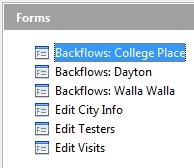
- Locate the city form you desire and double click on it. The format is “Backflows: xxxx” where xxxx is the city name of where the job is being done. Following example shows the College Place template selected.
- Visually Find the “Form Navigation” Bar, it looks like this:

- Click on the “Data Source as Table” button.

- You should now be looking at something similar to the below window. (Note, it will look different for different cities)
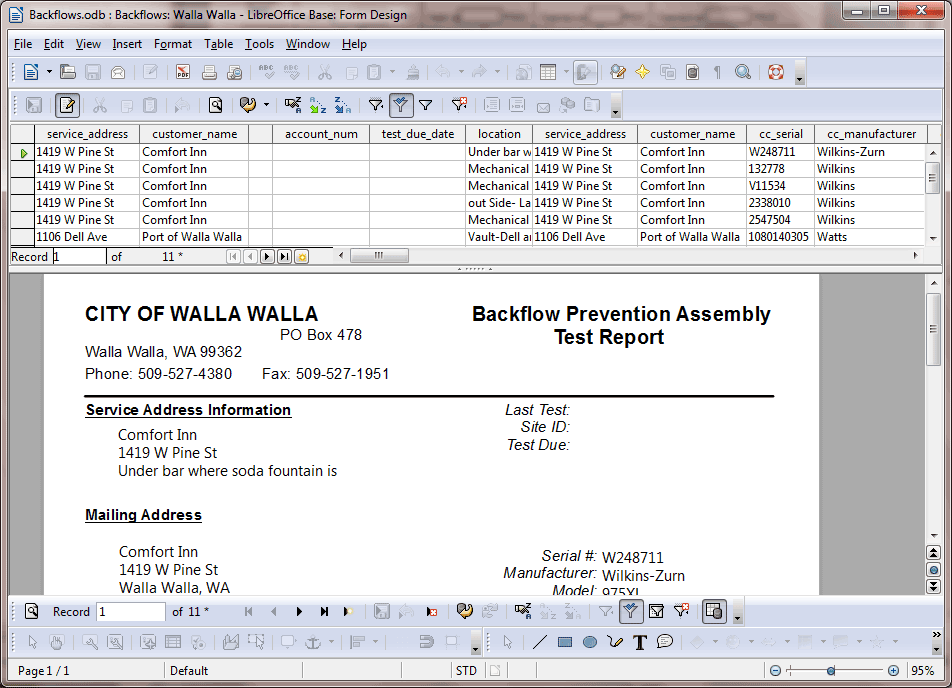
You have opened a template!
I realize that it looks rather busy. Please do not be alarmed, as everything will be explained in the next few chapters. If you want an overview of this window, take a look at the chapter called Template Interface Details
Creating, Filling, and E-mailing the Form
Ok, so you’re at the job site and you’ve finished the job. You are now ready to create the form and e-mail it around.
Selecting the Customer
- Open the correct template for the city you are in as detailed in Opening a City Template (if it is not already open).
- Locate the specific record you wish to use by scrolling or using a filter (either ‘AutoFilter’ or ‘Standard Filter’). For details on how to use the filter, refer to the chapter entitled Using Filters.
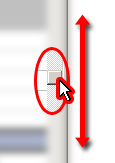
- Highlight the row by left clicking in the brown/grey area just to the left of the row.
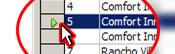
The form should now be updated to match the row you clicked on. Great job!
Filling Out Visit-Specific Details
- Add information specific to this visit. You will see things like CHECKBOXES and FIELDS. The exact location and meaning of each field is different for each template. When you have completed adding information, proceed to the next step.
- Press the ‘Submit’ button at the bottom of the page. This action will launch a custom script. Wait for the e-mail window to appear and proceed to the next step Sending the E-Mail.
Sending the E-Mail
You will see several windows flash by, and then a window asking “Do you want send this e-mail immediately?” Follow the below flowchart.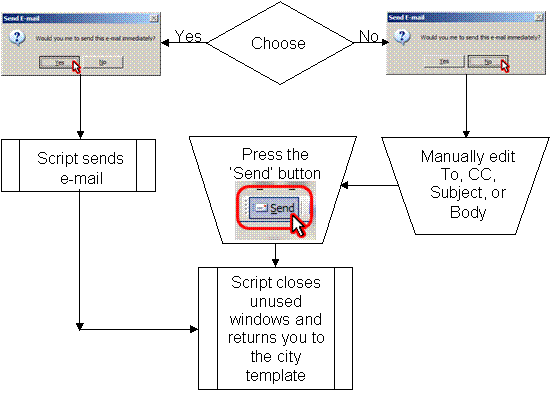
You’ve successfully sent the form via e-mail!
Using Filters
The screen goes slightly blurry as your frantically scroll downward, attempting to find that one customer to edit or use in the template. After zooming past 400 records and coming to the end, you realize you missed it. Slowly you trudge back up the list.
The above situation can be avoided by the use of filters to filter the view to show you only what you are looking for. Here is a brief outline on how to use them.
We assume that your window looks something like this: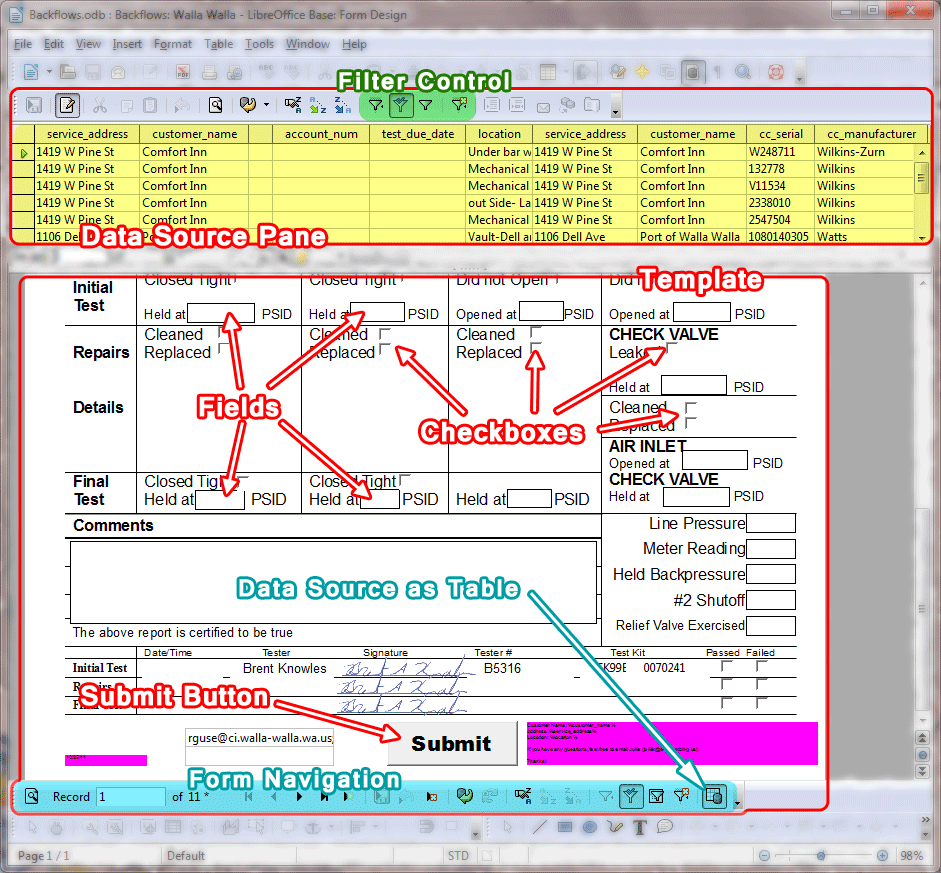
If not, please follow the steps in the first chapter to open a database → city template and toggle on the data source window.
AutoFilter
- Visually locate and click on a field you want to filter by, in the same column. For instance, if I wanted to show only the records which had a value of ‘June’ in the column named ‘month’, I would click on the field shown to the right.
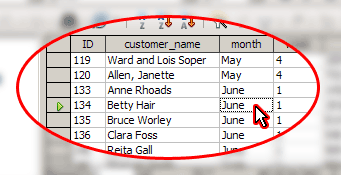
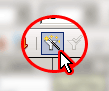
- Click on the button named ‘AutoFilter’.
- Notice how only the records which have the selected value in the desired column are showing? Sweet!
- To remove the filter, click the ‘Remove Filter/Sort’ button.

Updates to OpenOffice may change the look of the buttons, but the names of them will always stay the same, as will the general style. Once you are familiar with the location of the buttons, they will not change on you.
Standard Filter
- Click on the ‘Standard Filter’ button.

- A new window will appear which looks like this:
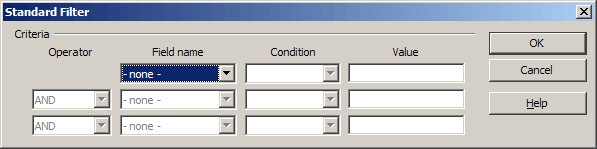
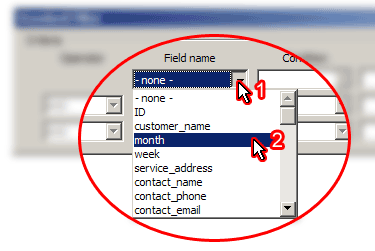
- Click on the first ‘Field name’ dropdown and select the field that you would like to filter. For instance, if I were to filter by the field ‘month’, I would select ‘month’ from the dropdown.
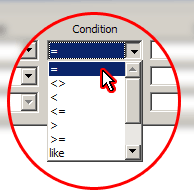
- If you are testing for a ‘Greater than’, ‘Less than’ or ‘Like’, click on the first ‘Condition’ dropdown and select the desired comparison type. Otherwise you can leave it on the default comparison type ‘=’.
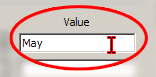
- Click on the first ‘Value’ box, and type in the value which you would like to filter by. For instance if I wanted to filter by ‘May’, I would click and type in ‘May’ (without the single quotes).
- If you wish to add a 2nd filter, do the above steps for the 2nd line down, then select how you want the two filters to operate from the far left dropdown called ‘Operator’. (AND = Both lines MUST be true) (OR = One of the lines must be true)
- You can also add a 3rd condition by following the previous step.
- Click OK to apply the filter.

- You are now back to the main ‘Data Source’ window. Only records matching your filter are displayed. If there are no records displayed, repeat the above steps using less conditions, or broaden your condition(s).
- To remove the filter, click the ‘Remove Filter/Sort’ button.
Template Interface Details
Note: The buttons, purple fields, and light grey outlines do not print.
There are several hidden ‘fields’ in the templates. If you need to enter data somewhere, just click and start typing. If the text does not appear where you think it should, or if formatting issues start occurring, please ask the person who created the template for help.